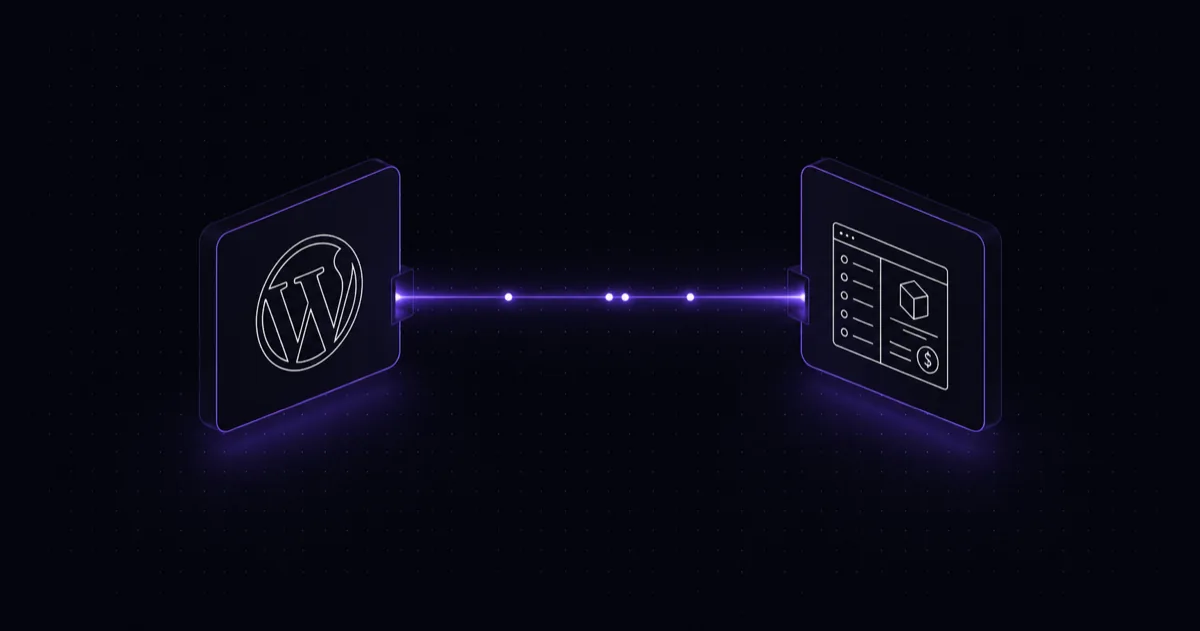
High-Performance WordPress & WHMCS Integration for 2025
Deep dive into synchronizing marketing sites with enterprise billing portals for seamless user trust.

Why WordPress and WHMCS Need to Talk
If you run a web hosting business or any service-based company, you have probably faced the same friction I did early in my career: WordPress handles your marketing site beautifully, but WHMCS powers your billing and client management. Getting these two platforms to work together seamlessly is not just a convenience — it is a business necessity. A client who has to log in to two separate systems, remember two passwords, and navigate two completely different interfaces will churn faster than one who enjoys a unified experience.
In this guide I will walk you through everything I have learned about integrating WordPress with WHMCS in 2025, from basic API connectivity all the way to webhook-driven automation and genuine performance optimization.
The Two Approaches: iframe vs Full API Integration
Before writing a single line of code, you need to make an architectural decision. WHMCS gives you two main paths for WordPress integration.
The iframe approach is the quick and dirty solution. You embed the WHMCS client area inside a WordPress page using an iframe, apply some CSS tricks to hide the WHMCS header and footer, and call it a day. Setup takes under an hour. The problem is that iframes are terrible for SEO, break on mobile, cause cross-origin cookie issues in modern browsers, and make any real theming almost impossible. I used this approach on my first three client projects and regretted it every time.
The API integration approach is harder upfront but pays dividends for years. You use the WHMCS API to pull data into WordPress and push actions back, building a custom client area that looks and behaves exactly like your WordPress theme. This is what I now recommend for any project where the client area will see real traffic.
Enabling and Securing the WHMCS API
Start in WHMCS under Setup > General Settings > Security. Enable API access and create a dedicated API role with only the permissions your integration actually needs — principle of least privilege matters here. Generate an API identifier and secret, then store them as environment variables, never hardcoded in PHP or JavaScript files.
// wp-config.php additions
define( 'WHMCS_API_URL', 'https://billing.yourdomain.com/includes/api.php' );
define( 'WHMCS_IDENTIFIER', getenv( 'WHMCS_IDENTIFIER' ) );
define( 'WHMCS_SECRET', getenv( 'WHMCS_SECRET' ) );
On the server side, restrict WHMCS API access by IP. Under Setup > General Settings > Security, whitelist only the IP addresses of your WordPress server. This single step prevents the vast majority of API abuse attempts I have seen in production environments.
Setting Up Single Sign-On
SSO is the feature clients notice most. When a user logs in to WordPress, they should automatically be authenticated in WHMCS without a second login prompt. WHMCS provides a built-in SSO endpoint for exactly this purpose.
function whmcs_sso_redirect( $user ) {
    $params = array(
        'action'     => 'UserGetSSOToken',
        'identifier' => WHMCS_IDENTIFIER,
        'secret'     => WHMCS_SECRET,
        'email'      => $user->user_email,
        'goto'       => 'clientarea',
    );
    $response = wp_remote_post( WHMCS_API_URL, array(
        'body' => $params,
    ) );
    $result = json_decode( wp_remote_retrieve_body( $response ), true );
    if ( $result['result'] === 'success' ) {
        return $result['redirecturl'];
    }
    return false;
}
Hook this function into wp_login and redirect the user seamlessly. Make sure the email addresses match between WordPress users and WHMCS clients — this is the most common SSO failure point I debug for other developers.
Building the Custom Client Area
With API access secured and SSO working, you can now pull WHMCS data directly into WordPress templates. I typically create a custom WordPress page template that fetches the client's active services, invoices, and support tickets via API calls and renders them using the WordPress theme's CSS.
Cache aggressively here. WHMCS API calls are not cheap in terms of latency. I use WordPress transients with a 5-minute TTL for service lists, and only bypass the cache when the client explicitly refreshes or when a webhook invalidates it. This brings perceived page load time from 800ms down to under 100ms for repeat visitors.
Webhook Automation for Real-Time Sync
WHMCS supports webhooks (called Hooks in WHMCS terminology) that fire on events like invoice payment, service activation, and ticket creation. I use these to keep WordPress in sync without polling.
Create a WordPress REST API endpoint to receive these hooks, verify the request signature, then trigger the appropriate WordPress action — sending a custom email, updating a custom post type, or flushing a transient cache. This event-driven architecture means your client area is always fresh without hammering the WHMCS API every page load.
Common Pitfalls and How to Avoid Them
- SSL mismatches: WHMCS API calls will fail silently if your WordPress server cannot verify the WHMCS SSL certificate. Always test with
curlfrom the command line before blaming the code. - API rate limits: WHMCS imposes rate limiting. Build exponential backoff into every API call wrapper.
- Time zone mismatches: WHMCS stores timestamps in UTC. WordPress may be configured differently. Normalize everything to UTC in your integration layer.
- Session conflicts: Mixing WordPress sessions with WHMCS sessions across subdomains requires careful cookie domain configuration. Set
cookie_domainin wp-config to the root domain.
Performance Optimization Tips
Beyond transient caching, I run the WHMCS installation on a separate VPS from WordPress. This isolates database load and lets me scale each system independently. Put a CDN like Cloudflare in front of both, and configure WHMCS to set appropriate Cache-Control headers on static assets.
For high-traffic scenarios, consider a Redis object cache on both the WordPress and WHMCS servers. The WHMCS MySQL server is often the bottleneck — proper indexing on the tblhosting and tblinvoices tables makes a measurable difference when you have tens of thousands of clients.
A well-integrated WordPress and WHMCS setup feels invisible to the end user, which is exactly the point. When clients never think about switching between systems, your support ticket volume drops and your retention improves. The upfront engineering investment pays back quickly.
Frequently Asked Questions
How do I keep WordPress and WHMCS design consistent?
Share a token set (colors, spacing, typography) between the WordPress theme and WHMCS template, then audit margins, buttons, and iconography so the cart feels native to the marketing site.
What improves WHMCS performance the most?
Minimalist templates, Redis/Memcached for sessions, HTTP/2/3, brotli, image optimization, and stripping unused hooks/modules typically deliver the biggest gains.
Want this built for your business?


